

Change Your Company Name
The company name is the name FillFaster shows when it sends a form. It appears in two places:
- In emails FillFaster sends with a link to sign a form
- In the Audit Trail appendix at the end of a signed document
If no company name is set, FillFaster uses First Name and Last Name instead. Add a company name when you want the business name in those emails and on those documents.
On a personal account, set this in Account Settings. On an organization account, set it in Organization Settings. The same Account Settings page is also where you update your first and last name.
Personal account
Section titled “Personal account”- Log in to the dashboard.
- Open Settings.
- Under Profile Information, edit First Name, Last Name, and Company Name.
- Click Save Change.
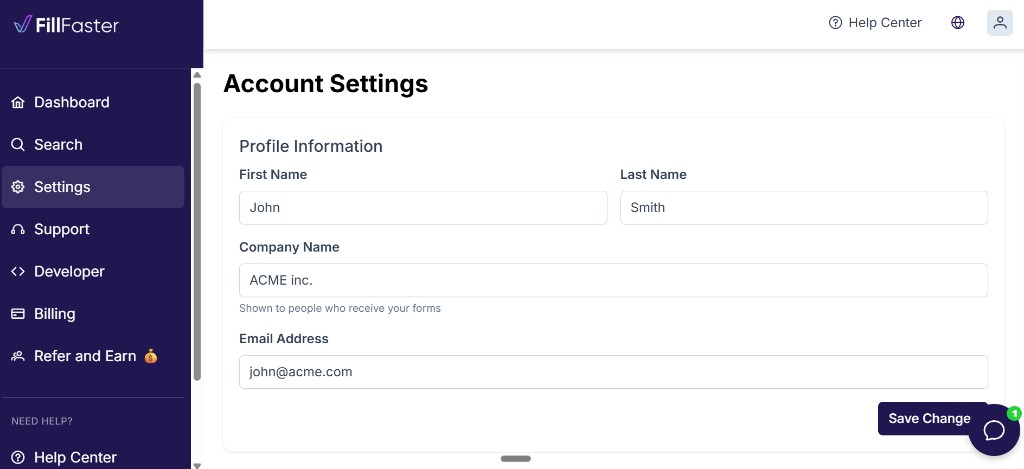
Leave Company Name empty only if you want signing emails and the Audit Trail to show your first and last name.
Organization account
Section titled “Organization account”On an organization account, the name in signing emails and on documents is Organization Name.
- Log in to the dashboard.
- Open Organization Settings.
- On the General tab, edit Organization Name.
- Click Save.
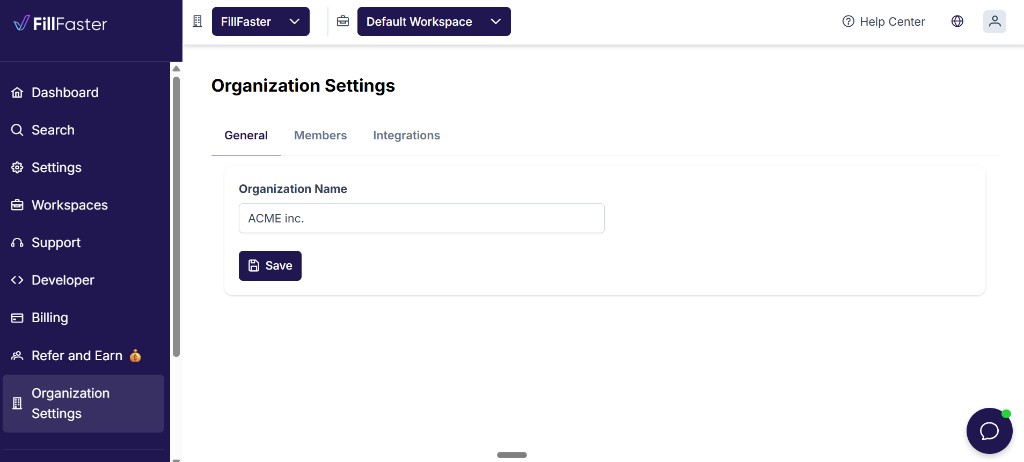
You need access to Organization Settings. If that menu item is missing, ask an owner or admin to update the name. See Organization for workspaces and members.
Frequently Asked Questions
Section titled “Frequently Asked Questions”Why do the email or the document show a person’s name?
Section titled “Why do the email or the document show a person’s name?”No company name is set. On a personal account, Company Name is empty. On an organization account, Organization Name is empty. FillFaster then shows First Name and Last Name in the signing email and on the document.
Does a new name replace the name on documents that are already signed?
Section titled “Does a new name replace the name on documents that are already signed?”A signed document includes the name that was saved when it was signed. Set the name you want before you send the document.
I changed Account Settings, and organization documents still show the old name
Section titled “I changed Account Settings, and organization documents still show the old name”On an organization account, set Organization Name in Organization Settings. The Company Name field on a personal profile does not replace it.
Troubleshooting
Section titled “Troubleshooting”The document still shows a personal name
Section titled “The document still shows a personal name”- Personal account: fill in Company Name under Settings, then click Save Change.
- Organization account: fill in Organization Name under Organization Settings, then click Save.
Organization Settings is missing from the menu
Section titled “Organization Settings is missing from the menu”The menu item is available to people who can manage the organization. Ask an owner or admin to update Organization Name, or to give you access.
Summary
Section titled “Summary”Set Company Name in Account Settings on a personal account, or Organization Name in Organization Settings on an organization account. That name appears in signing emails and in the Audit Trail appendix of signed documents. If it is empty, FillFaster shows the first and last name instead.