

Organization
FillFaster organization features let teams collaborate without sharing the account owner’s login. Use workspaces to organize forms and submissions, then invite members and give each person granular access to the areas they need.
What Is Included?
Section titled “What Is Included?”Organization collaboration includes these account features:
- Workspaces - Group forms and submissions into separate areas for departments, clients, or projects.
- Members - Invite people to your organization with their own login, without sharing the account owner’s password.
- Granular permissions - Control which workspaces and forms each member can access.
Prerequisites
Section titled “Prerequisites”Before setting up organization workspaces and members, ensure you have:
- An active FillFaster account on a plan
- Workspaces and Members enabled on your account (contact support if they are not yet active)
- Owner or admin access to your FillFaster account
Step-by-Step Setup
Section titled “Step-by-Step Setup”Step 1: Open Account Settings
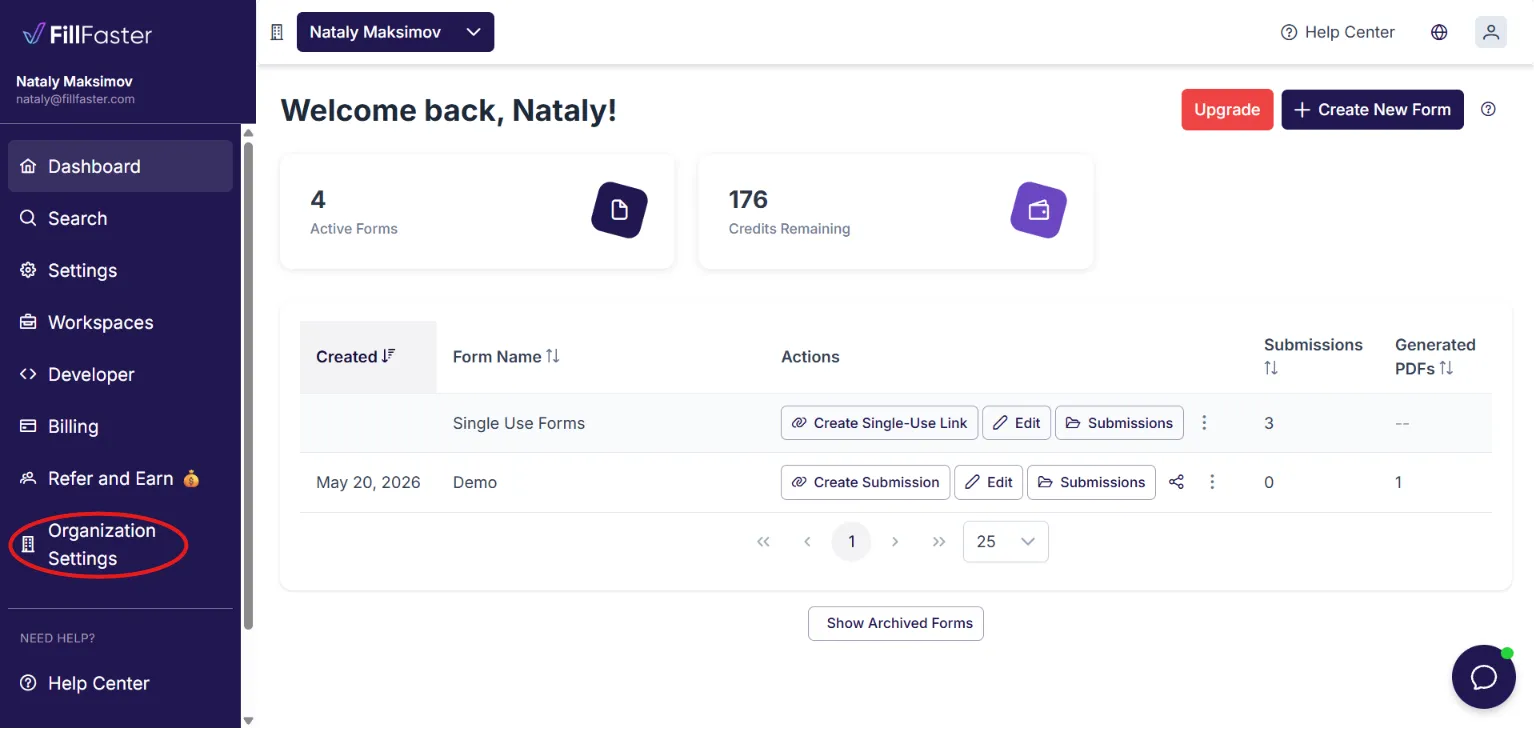
Section titled “Step 1: Open Account Settings”- Log in to your FillFaster account at the dashboard.
- Open Organization Settings from the dashboard menu.
Step 2: Create a Workspace
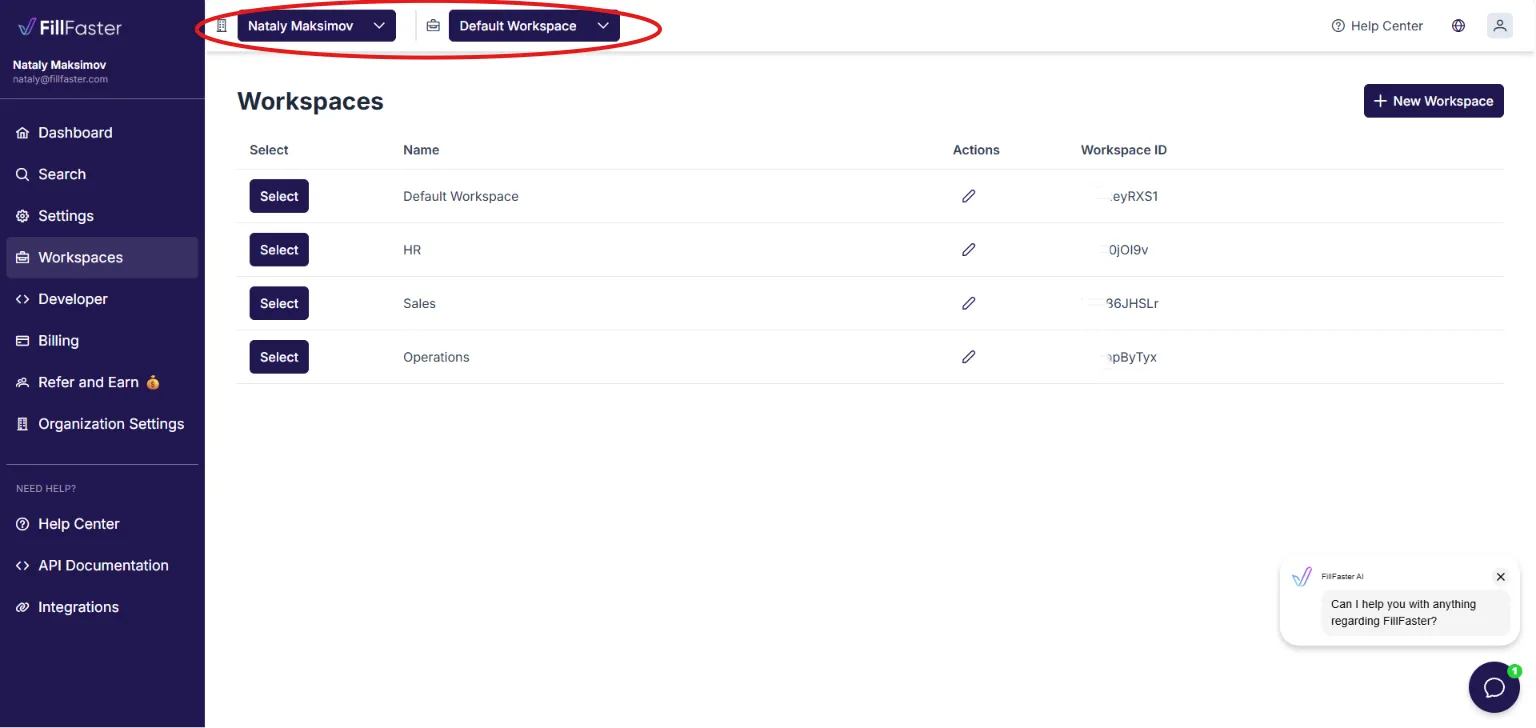
Section titled “Step 2: Create a Workspace”Workspaces let you separate forms and submissions by department, client, project, or team.
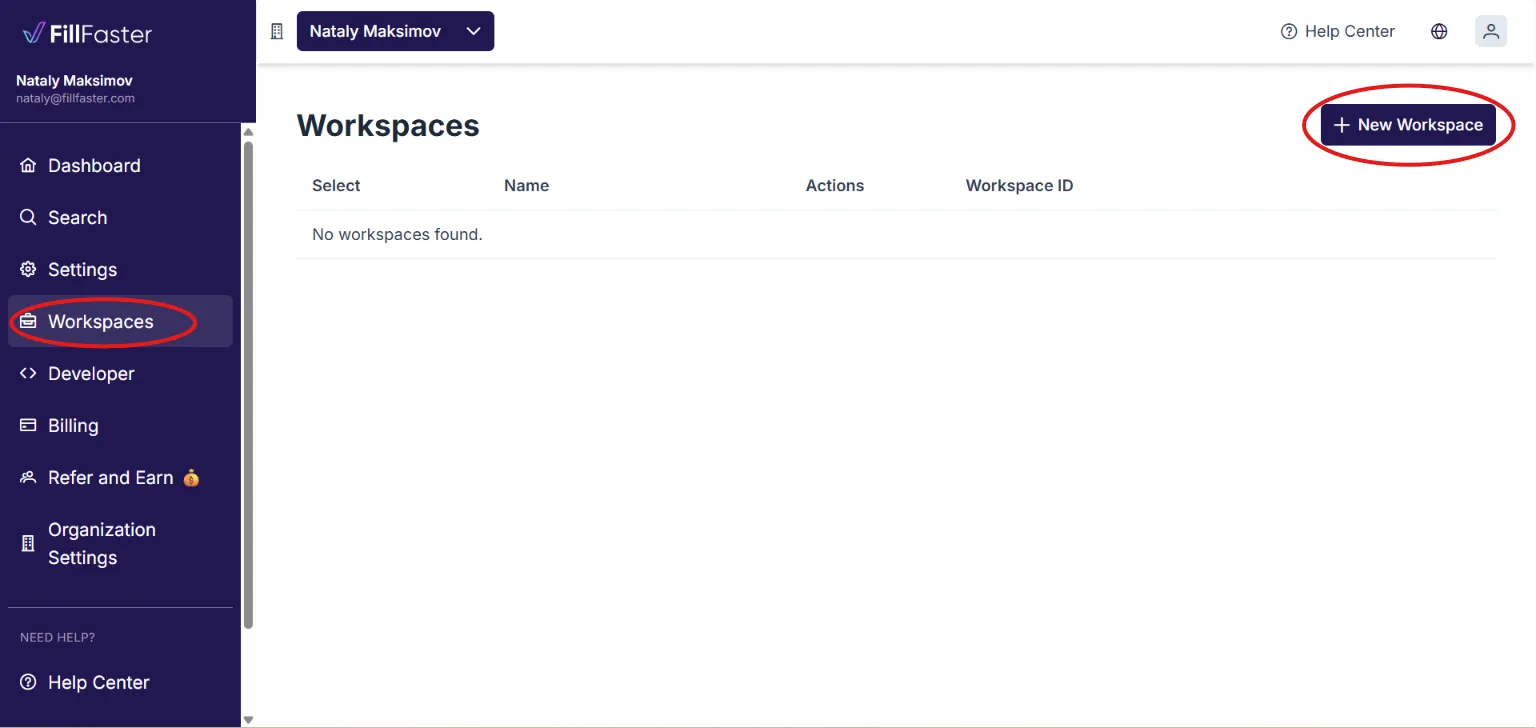
- Go to the Workspaces section.
- Enter a name for the workspace (for example, a client name or department).
- Save the workspace.
Step 3: Invite Members
Section titled “Step 3: Invite Members”Members get their own login and can access only the workspaces and forms you assign to them.
- Go to the Members section in Organization Settings.
- Enter the team member’s email address and choose their team role (user or admin).
- Assign the workspaces they should access.
- Send the invitation.
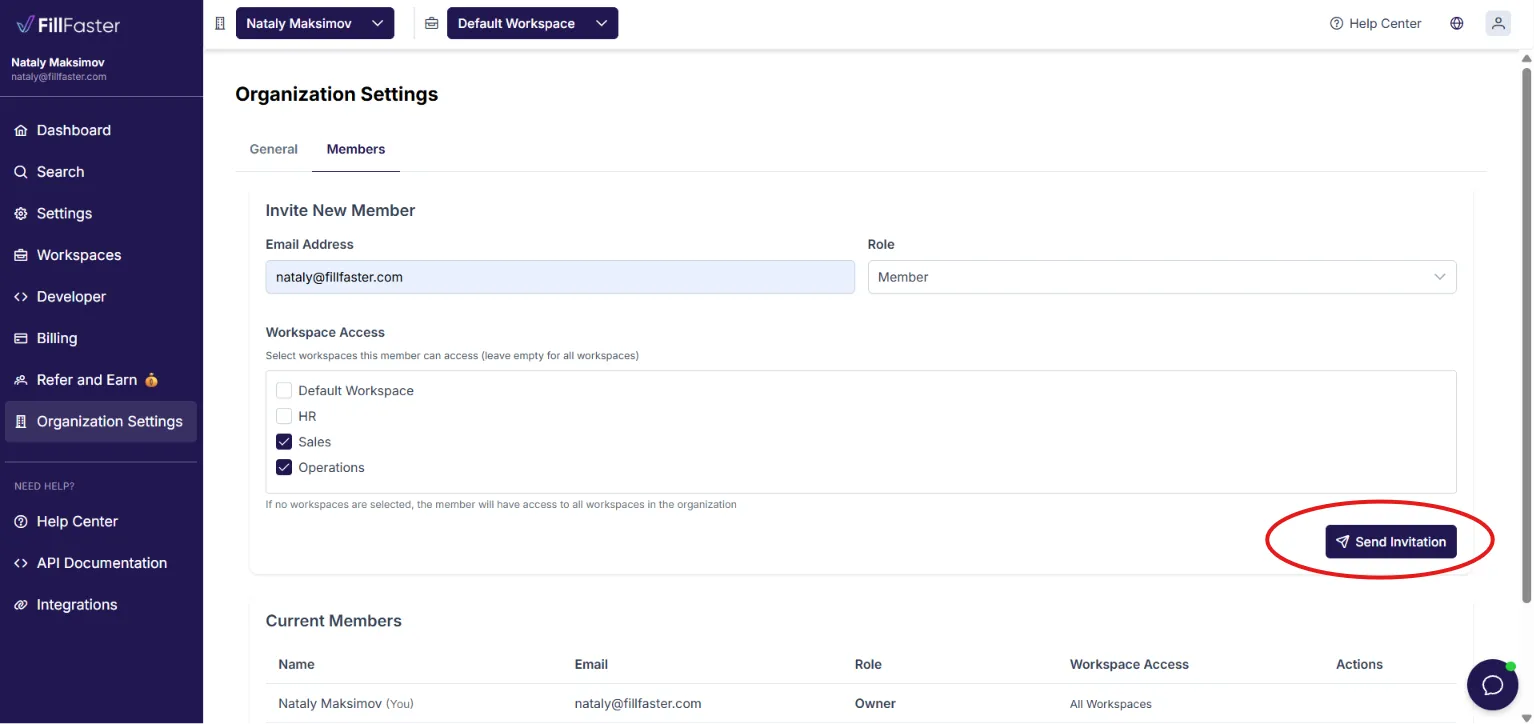
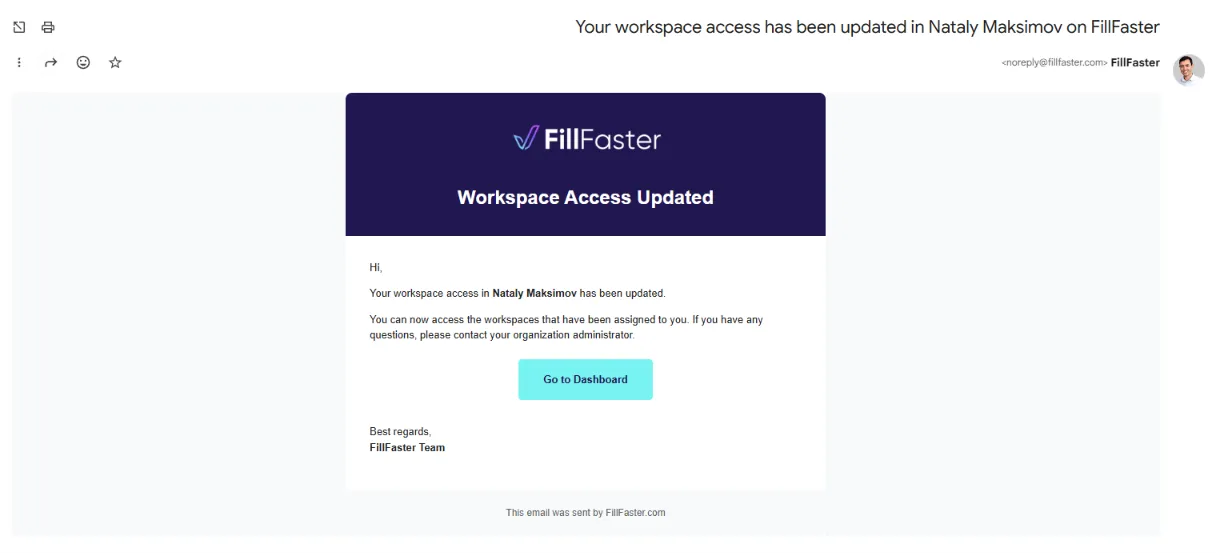
The invited user receives an email with instructions to join your organization. After they accept, they can log in and work within the assigned workspaces.
Common Use Cases
Section titled “Common Use Cases”Department within a company
Section titled “Department within a company”Create workspaces for HR, Sales, and Operations. Invite team leads as members and give each person access to their department’s workspace.
Agency managing multiple clients
Section titled “Agency managing multiple clients”Create a separate workspace for each client. Invite account managers as members and give each person access only to their client’s workspace.
Shared templates across the team
Section titled “Shared templates across the team”Place reusable template forms in a shared workspace so all authorized members can create submission links from the same templates.
Frequently Asked Questions
Section titled “Frequently Asked Questions”Do members share the same credits as the main account?
Section titled “Do members share the same credits as the main account?”Yes. Members work under your account’s plan and credit pool. Usage by members counts toward your account’s credits.
Can a member create API tokens?
Section titled “Can a member create API tokens?”API token management typically remains with the account owner. Members focus on form and submission management within their assigned workspaces.
Can I use workspaces without members?
Section titled “Can I use workspaces without members?”Yes. You can enable Workspaces alone to organize your own forms, even if you do not invite team members.
Troubleshooting
Section titled “Troubleshooting”Member did not receive the invitation email
Section titled “Member did not receive the invitation email”- Ask them to check their spam or promotions folder.
- Verify the email address was entered correctly.
- Resend the invitation from the Members section.
- Contact support if the issue persists.
Member cannot see expected forms
Section titled “Member cannot see expected forms”- Confirm the form is assigned to a workspace the member can access.
- Verify the member accepted the invitation and is logged in with the correct email.
Related Guides
Section titled “Related Guides”- How to Set Up a Custom Domain - Another paid add-on for branded form links
- How to Create and Get Your API Token - API access for the account owner
Need help with workspaces or members? Contact our support team at support@fillfaster.com.