

Automatic Email Delivery of Signed Documents to Client
This guide explains how to automatically email the signed document to the client - to the email address they enter in the form - right after they fill it out and sign.
When to Use This Setting?
Section titled “When to Use This Setting?”This setting is useful when:
- The client fills and signs the form, and you want them to receive a copy of the signed document by email
- Each client enters a different email address, so you cannot set a fixed address in advance
- You want the client to receive an automatic confirmation with the signed document right after submission
Configuration Steps
Section titled “Configuration Steps”Step 1: Open the Form for Editing
Section titled “Step 1: Open the Form for Editing”Log in to the FillFaster dashboard, open the form you want to edit (or create a new form), and continue to the field mapping step.
Step 2: Add an Email Address Field
Section titled “Step 2: Add an Email Address Field”In the toolbar on the left, click the envelope icon to add an “Email address” field to the form.
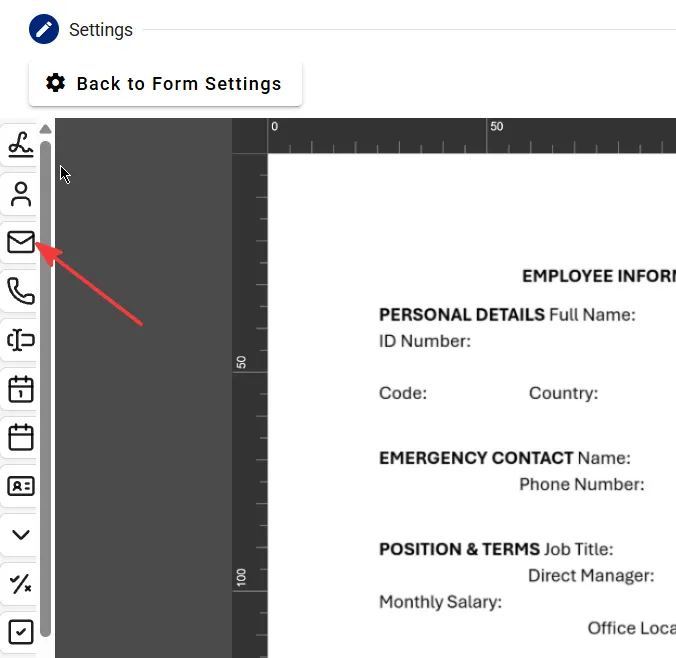
Place the field in a suitable location on the document - usually near the client details or before the signature step.
Step 3: Mark the Field as Recipient Email
Section titled “Step 3: Mark the Field as Recipient Email”Click the field you created to open the “Edit field” window. Select the “Recipient email, where the signed document will be sent” checkbox.
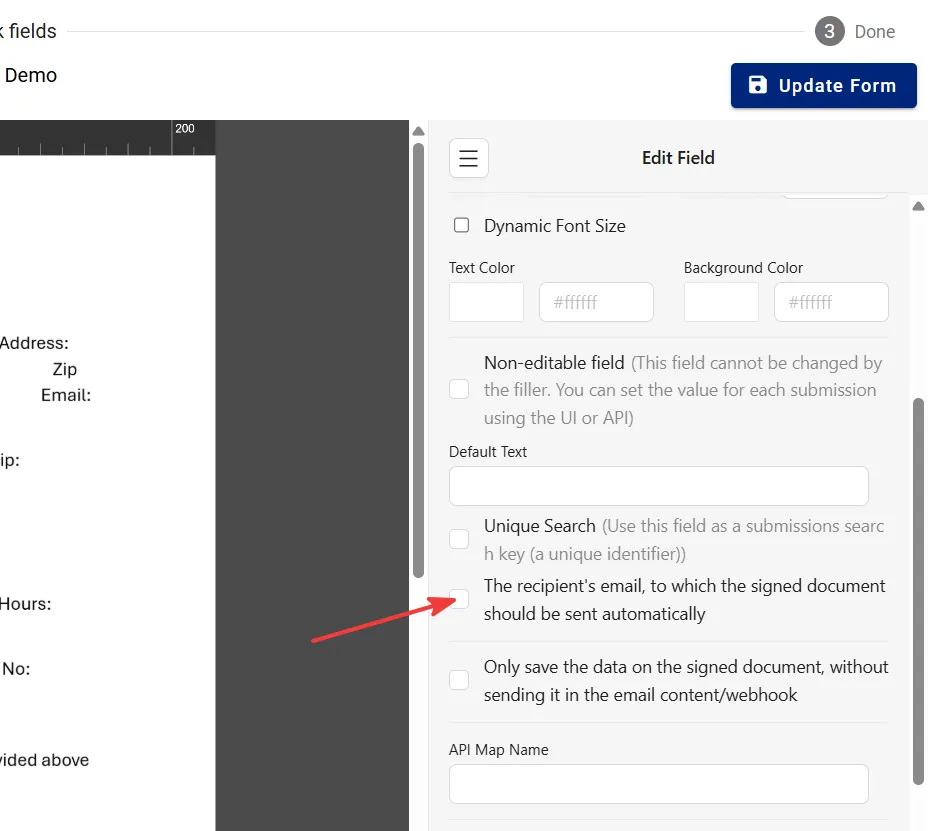
Step 4: Save and Update the Form
Section titled “Step 4: Save and Update the Form”After you configure the field, click “Update form” to save your changes.
What Happens After Submission?
Section titled “What Happens After Submission?”When the client fills out the form, signs it, and submits it:
- FillFaster sends the signed document to the email address configured on your account (or to a custom address, if you set one)
- In addition, FillFaster automatically sends a copy of the signed document to the email address the client entered in the field you marked as “Recipient email”
- You can mark only one field as “Recipient email” per form
- If the client entered an incorrect email address, the signed document is sent to that incorrect address - make sure the field is required and clearly placed on the form
- Sending the document to the client does not cancel sending it to you - both recipients receive the signed document
Thank you for using FillFaster. See you in the next guide!