

How to Populate Dynamic Tables in FillFaster with Make.com
This guide explains how to use Make.com to dynamically populate a table field in your FillFaster form with data from another source (like monday.com, Google Sheets, etc.). The key is using the Array Aggregator module.
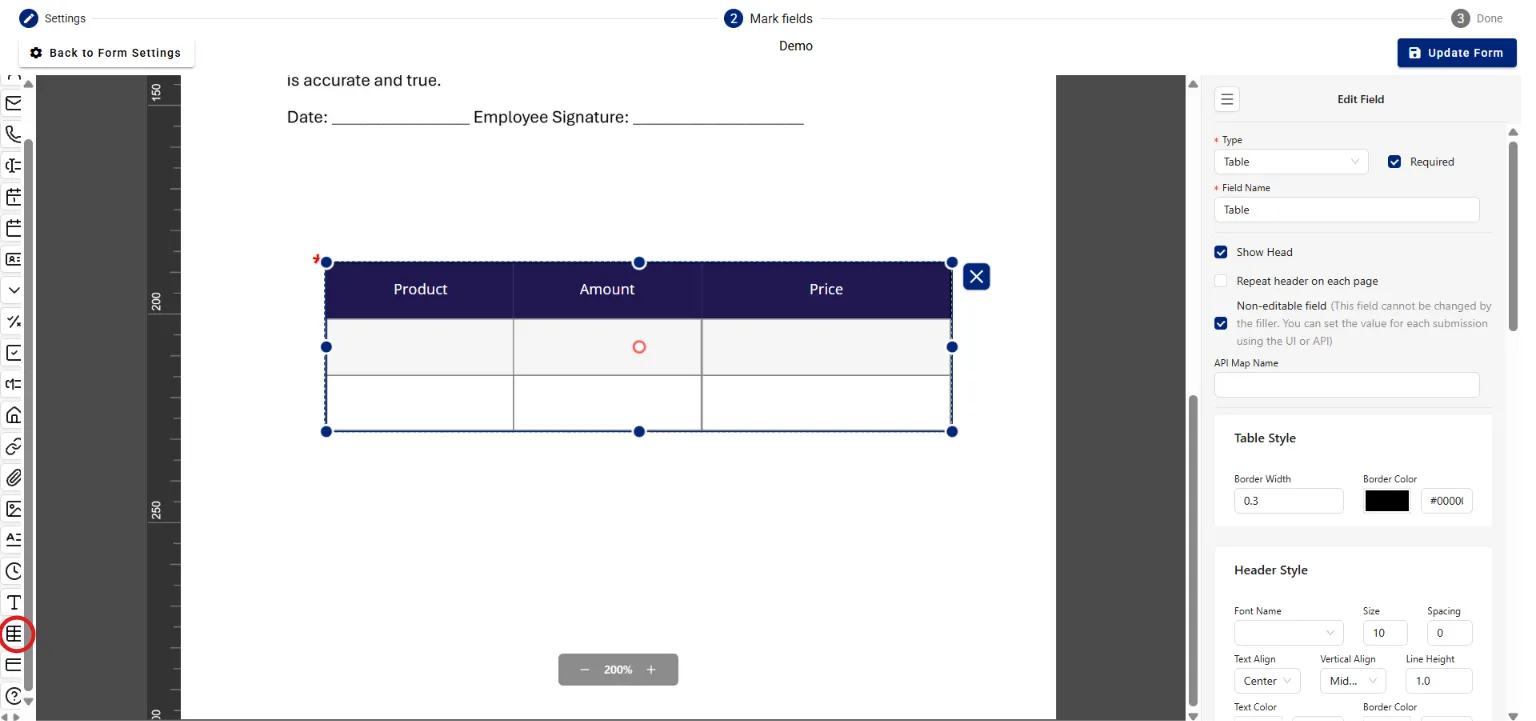
Add a Table Field in FillFaster
Section titled “Add a Table Field in FillFaster”First, you need to set up your form.
- Open your form in the FillFaster form builder.
- Add a Table field to your form.
- Configure the table columns (for example: Product, Price, Final Price).
This table is where the data from Make.com will be inserted.
Set Up the Initial Make.com Scenario
Section titled “Set Up the Initial Make.com Scenario”In your Make.com scenario, connect your data source to FillFaster.
Add the Data Source
Section titled “Add the Data Source”Add the app that provides your data (for example: Google Sheets, monday.com, and more).
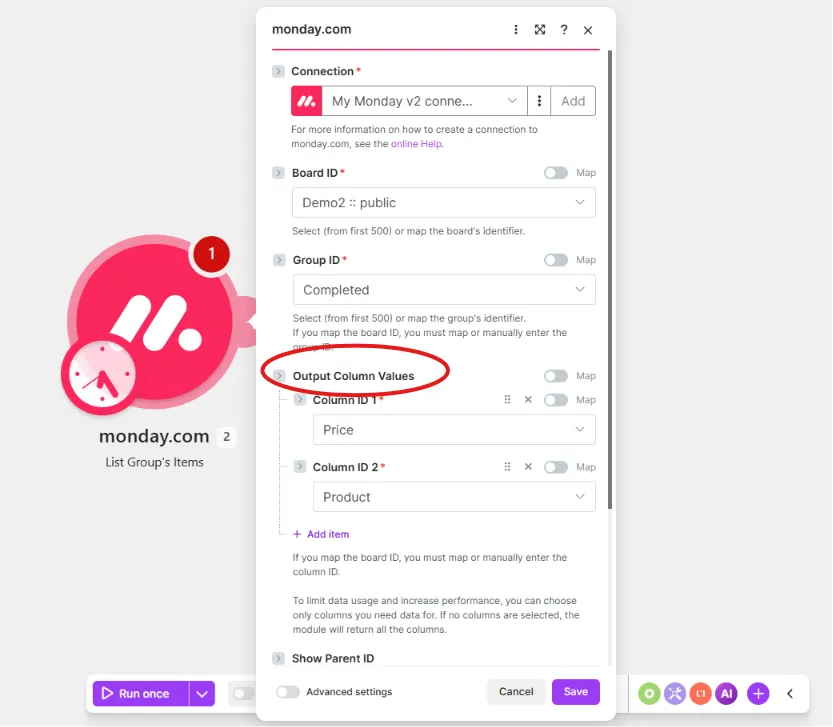
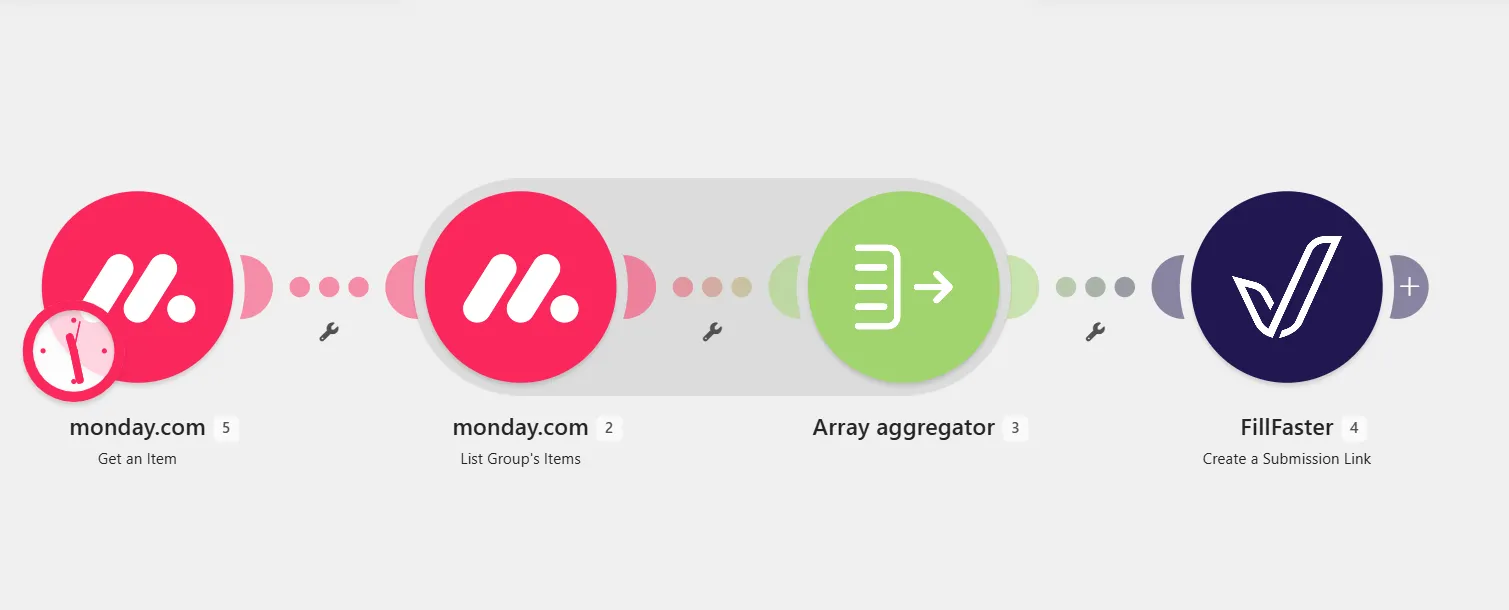
In this example, we use monday.com List Group’s Items.
Select the Board ID and the columns to pull data from under Output Column Values (for example: Price, Product).
Add the FillFaster Module
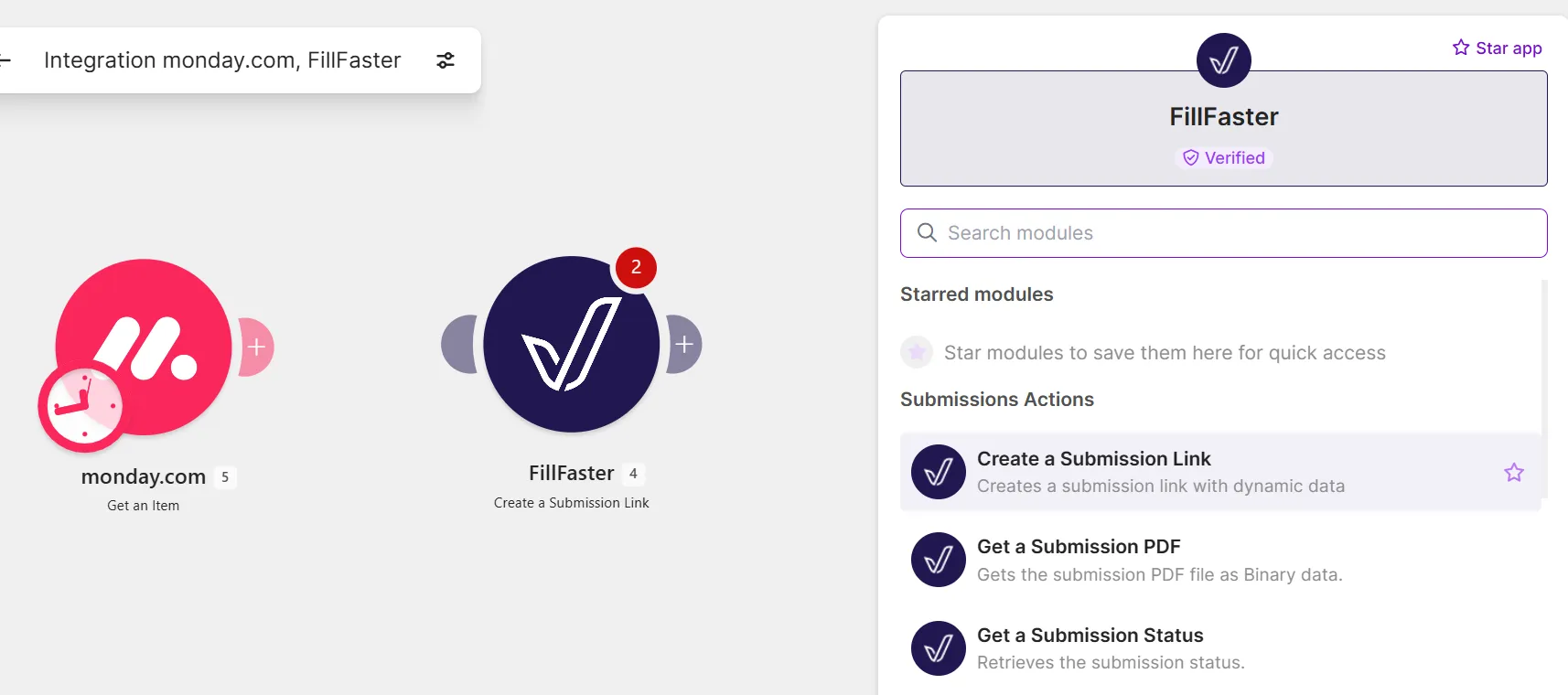
Section titled “Add the FillFaster Module”Add the FillFaster > Create a Submission Link module. Configure it with the correct Form ID to load your form fields.
Add the Array Aggregator
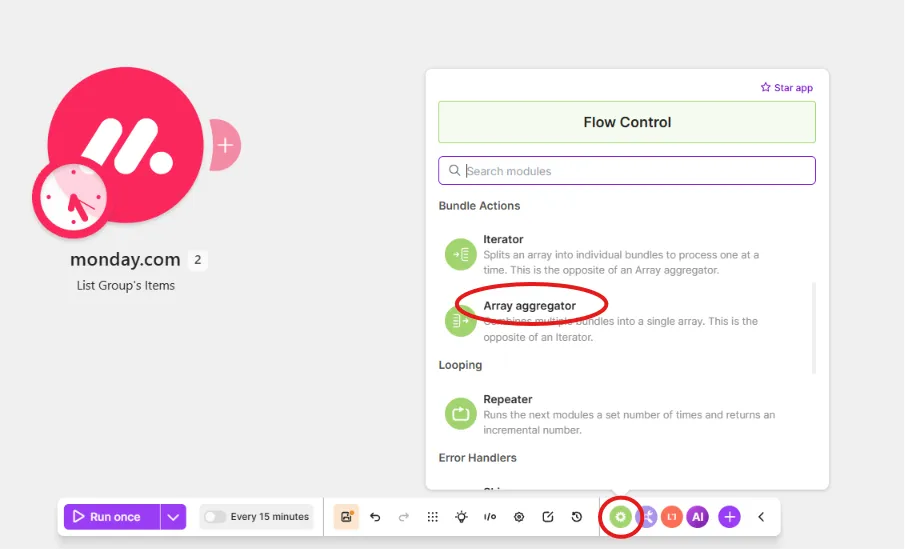
Section titled “Add the Array Aggregator”Between your data source and the FillFaster module, add an Array Aggregator module from the Flow Control menu. This module gathers all individual data entries (like spreadsheet rows or list items) into a single array.
Your basic scenario flow should look like this:
Configure the Array Aggregator
Section titled “Configure the Array Aggregator”Now, configure how the aggregator structures the data for your table.
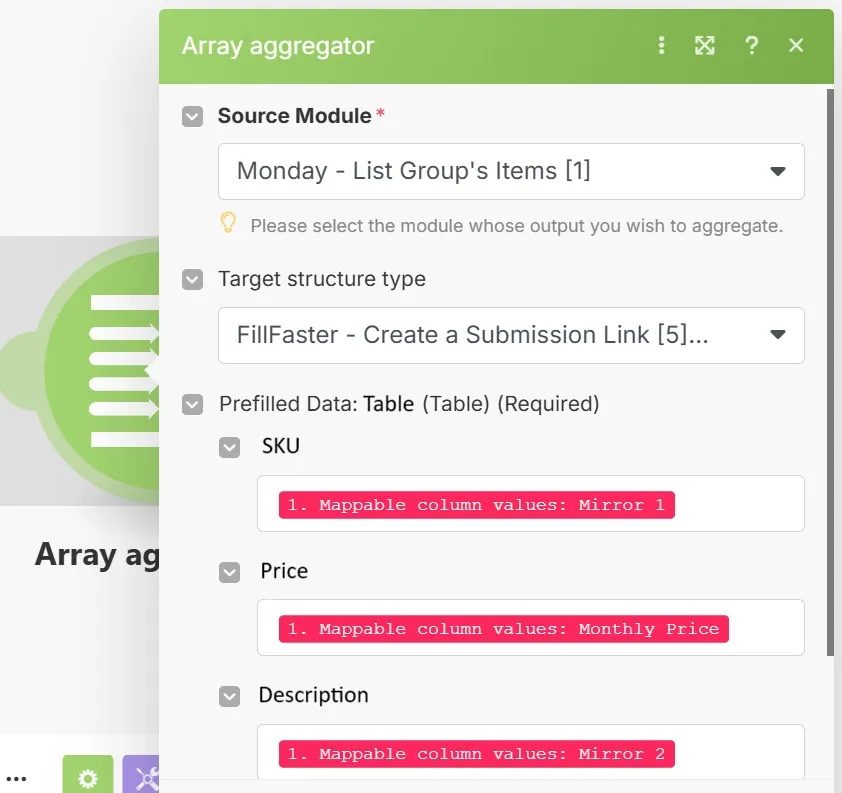
- Click the Array Aggregator module to open its settings.
- Under Source Module, select the module that provides the items (for example: monday.com - List Group’s Items).
- Under Target structure type, select your FillFaster module (the table field). The columns from your table field will appear automatically.
- Map the corresponding values from the source module to each column in the target structure.
Map the Array to the FillFaster Table
Section titled “Map the Array to the FillFaster Table”Finally, connect the aggregator output to your FillFaster form.
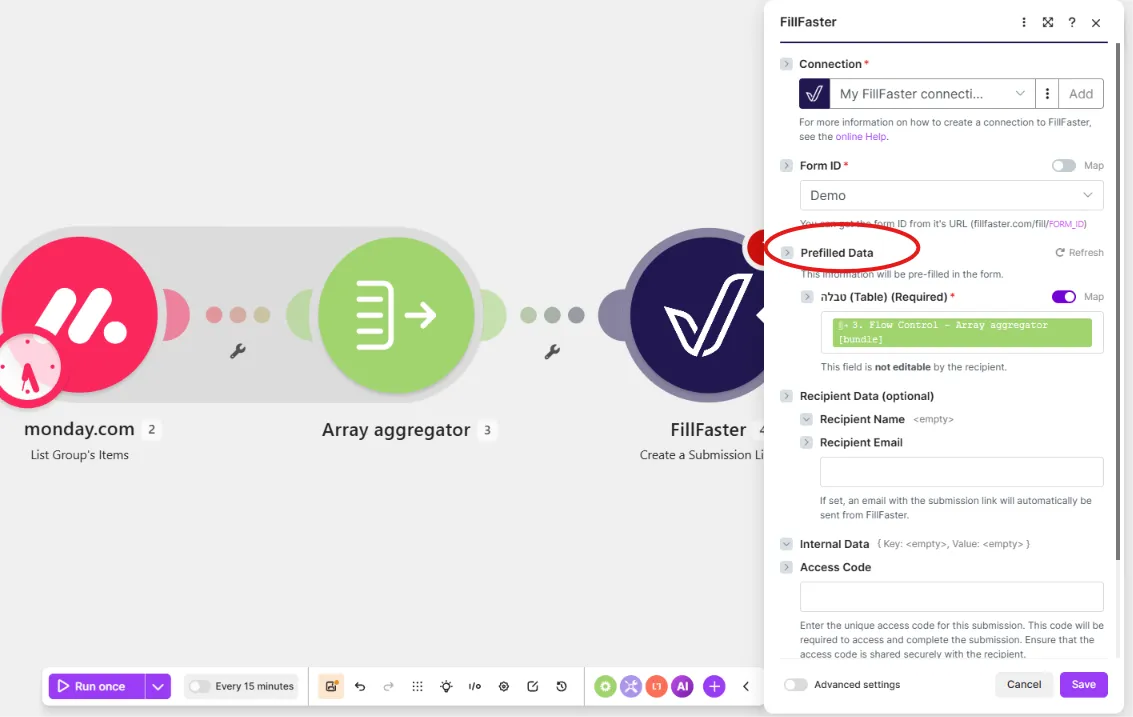
- Open the settings for the FillFaster > Create a Submission Link module.
- Locate your table field (for example: “Table (Table)”).
- Enable the Map toggle switch next to the table field’s name.
- Map the Array[] variable from the Array Aggregator to this field. You are now mapping the entire collection of data at once.
That’s it! When the scenario runs, the Array Aggregator compiles all source items into a structured array, and the FillFaster module pre-fills the table with that data.