

Set an Expiration Date for a Submission Link
Setting an expiration date ensures that a specific submission link stops working after the deadline you define. Use it when you need to close a document quickly or invalidate a link that was sent by mistake.
Before you start
Section titled “Before you start”- A FillFaster account with access to the relevant form.
- At least one submission link that was already created for that form.
Set the expiration date
Section titled “Set the expiration date”- Sign in to your FillFaster dashboard.
- Open the form you need and select Submissions to view all links for that form.
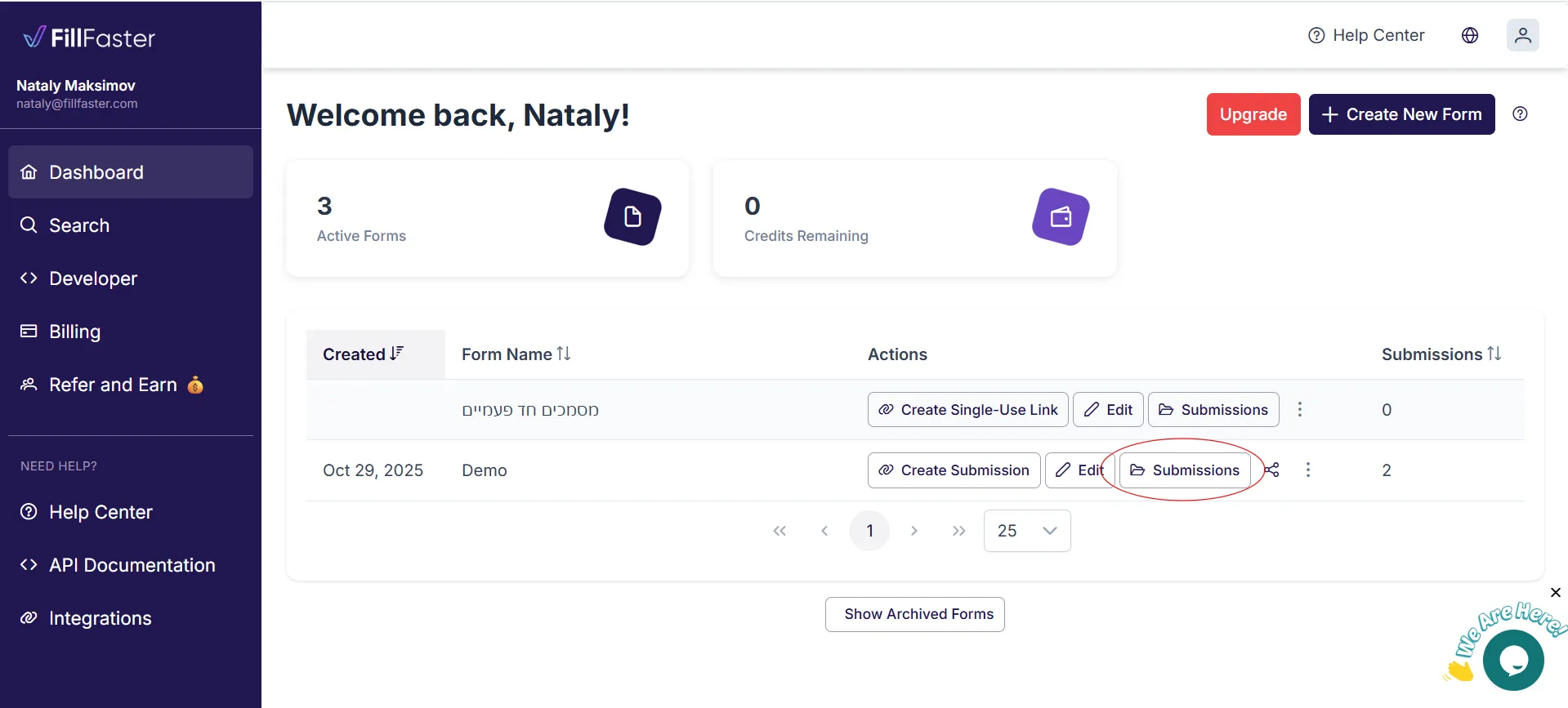
- Locate the submission you want to limit and open its details.
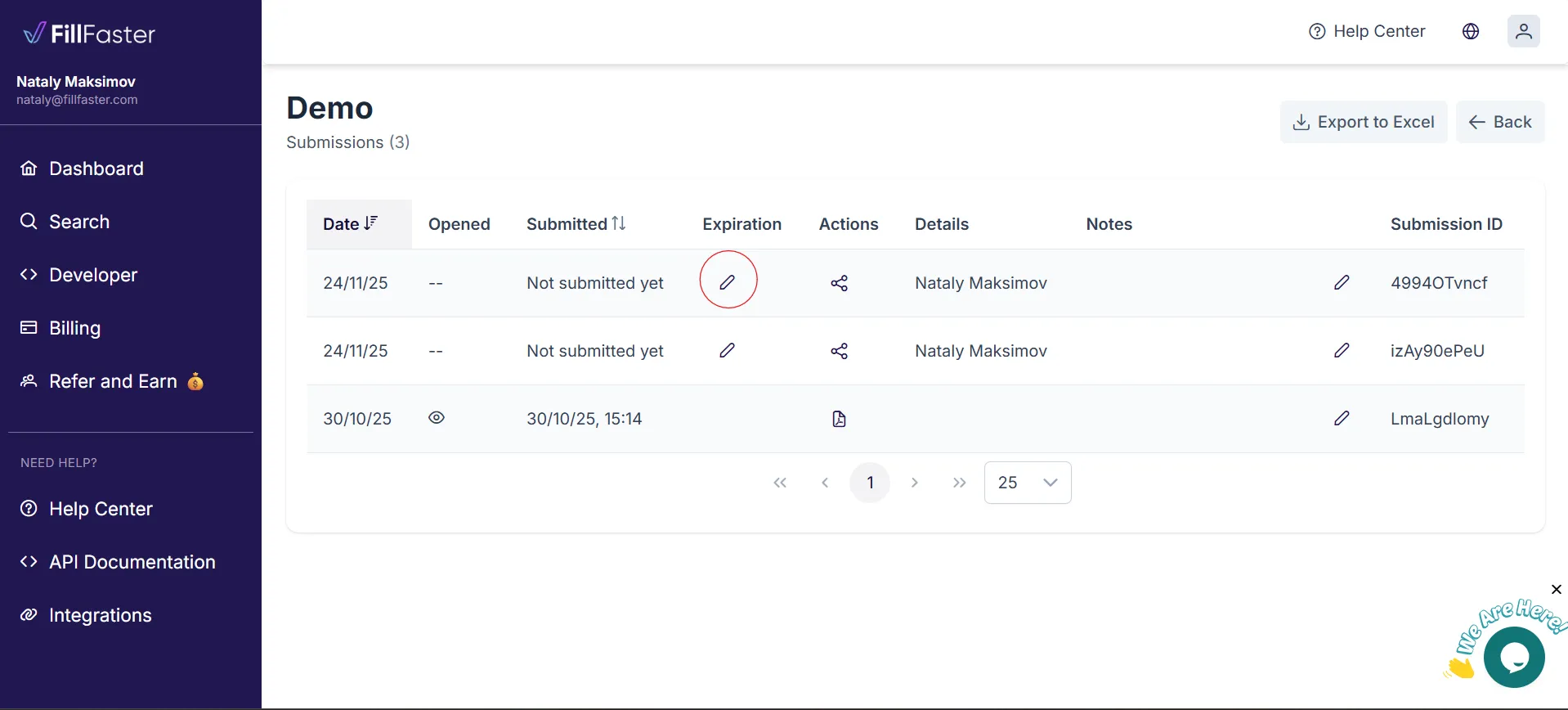
- Choose the expiration date. Pick a future deadline to stop the link after that day, or backdate the expiration (for example, yesterday) to disable it immediately if the link was sent by mistake.
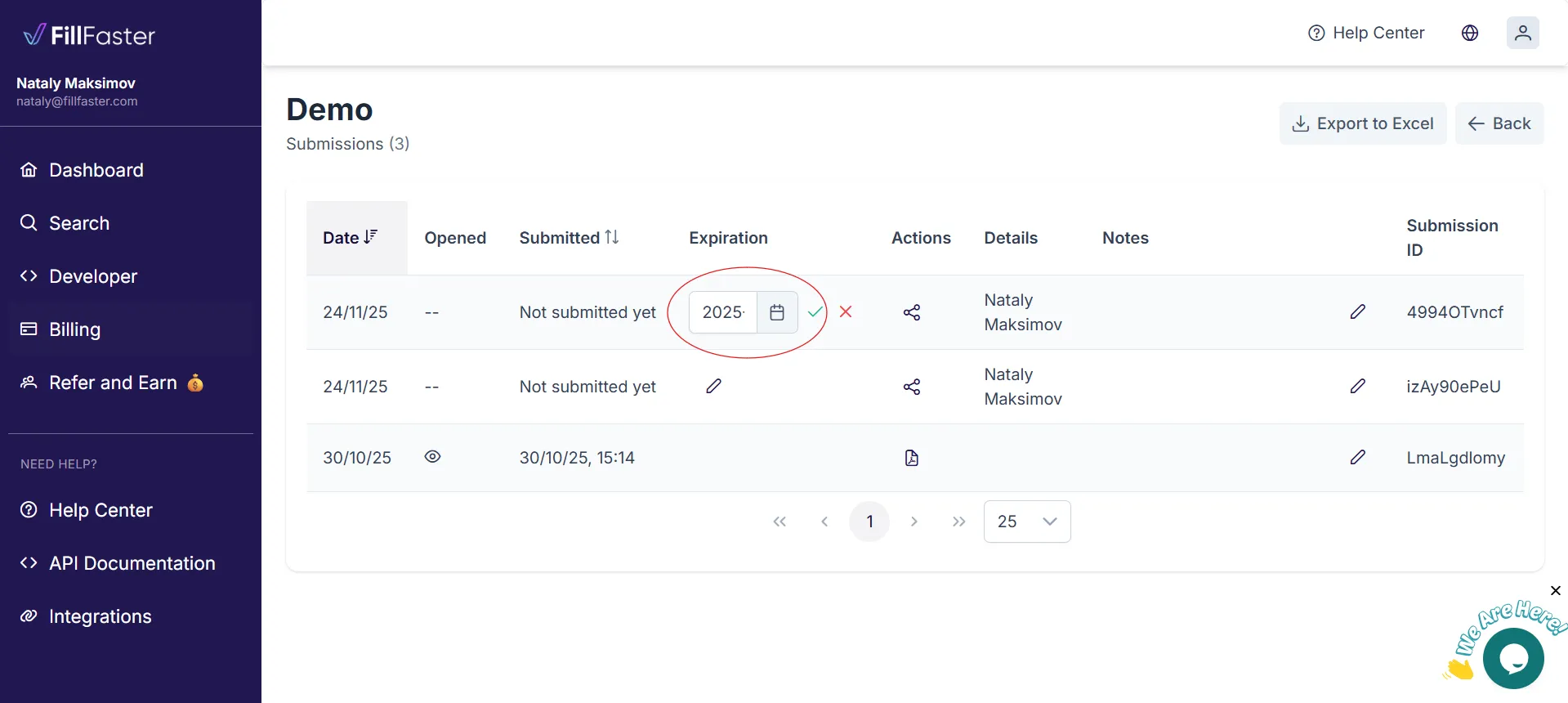
- Save the change. The submission link now respects the expiration date you set.
Good to know
Section titled “Good to know”Important: Expiration dates apply to individual submission links. Repeat the process for every link that needs its own deadline.
- You can update or remove the expiration date at any time to reopen access.
- Recipients who try to access an expired link see that the submission is no longer available.