

Download PDF Files from Canva
Below is a comprehensive guide for exporting documents in high-quality PDF format. Utilizing PDF is the most effective method to guarantee that your design is preserved precisely as planned.
Before You Begin
Section titled “Before You Begin”- Before downloading, ensure your document is ready.
- Check that all text is accurate and that there are no spelling errors.
Exporting Your Files
Section titled “Exporting Your Files”Step 1: Click the Share Button
Section titled “Step 1: Click the Share Button”Click the ‘Share’ button located in the top corner of the screen (either left or right side, depending on your language settings).
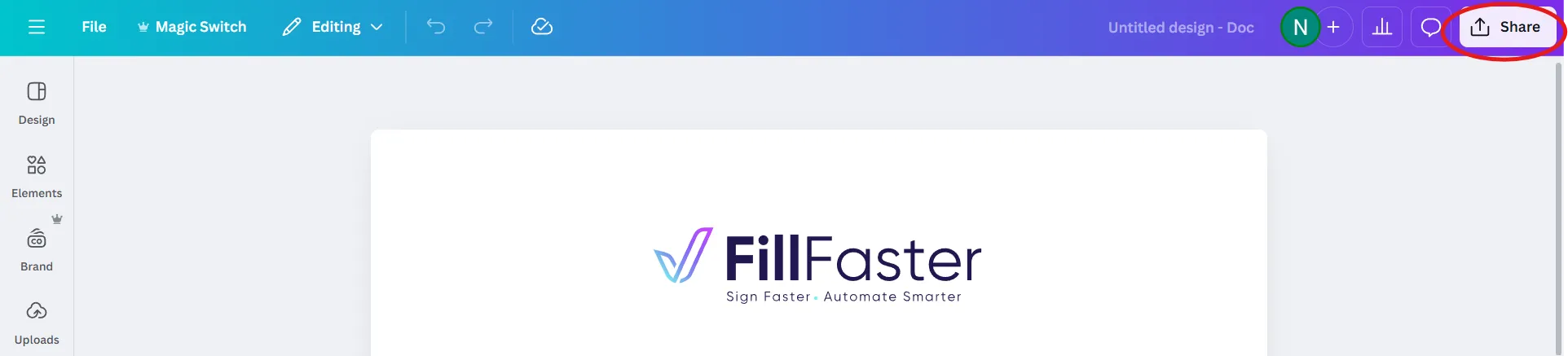
Step 2: Select Download
Section titled “Step 2: Select Download”From the dropdown menu, click on ‘Download’.
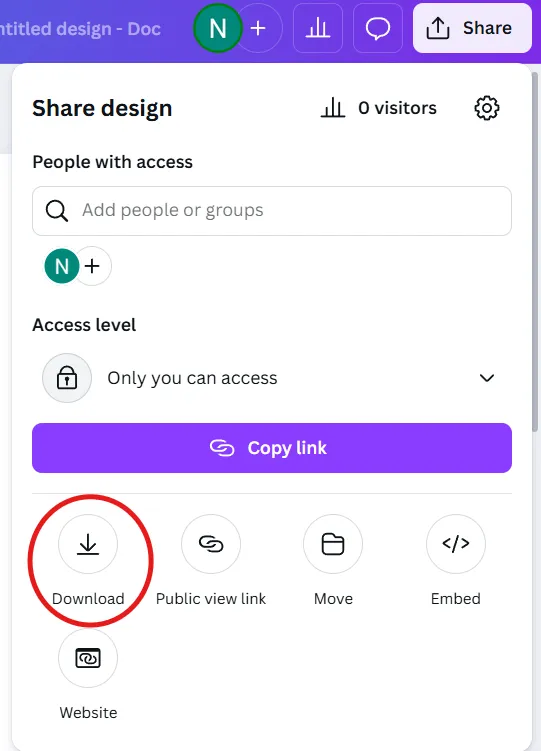
Step 3: Choose PDF Type
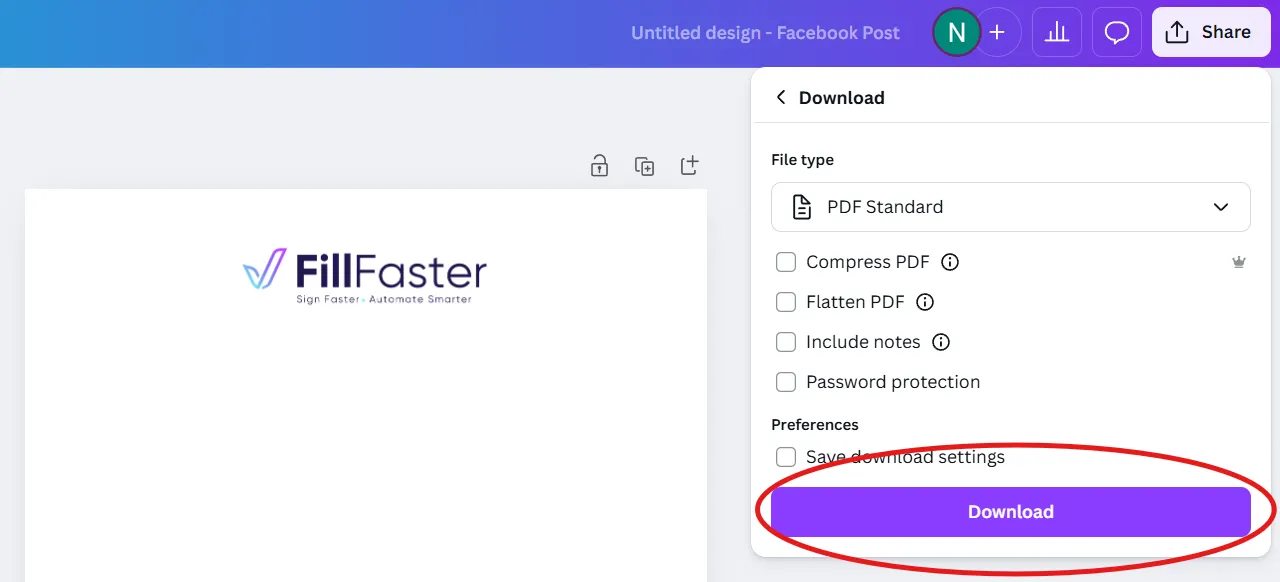
Section titled “Step 3: Choose PDF Type”Under the “File type” heading, you will see a dropdown menu. Canva offers two main PDF options:
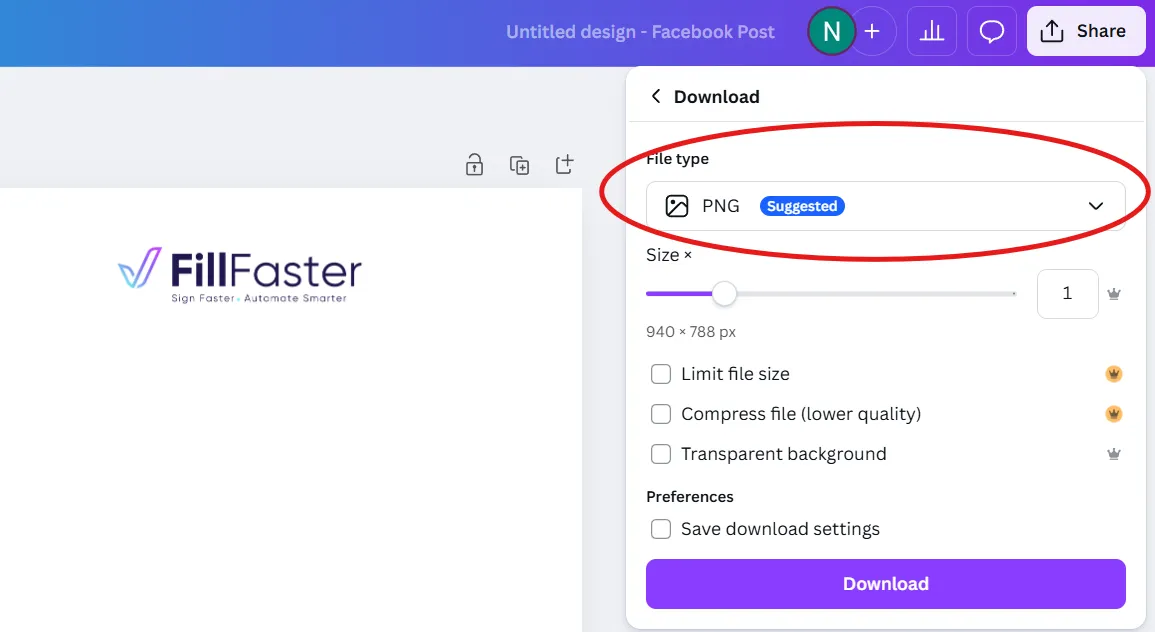
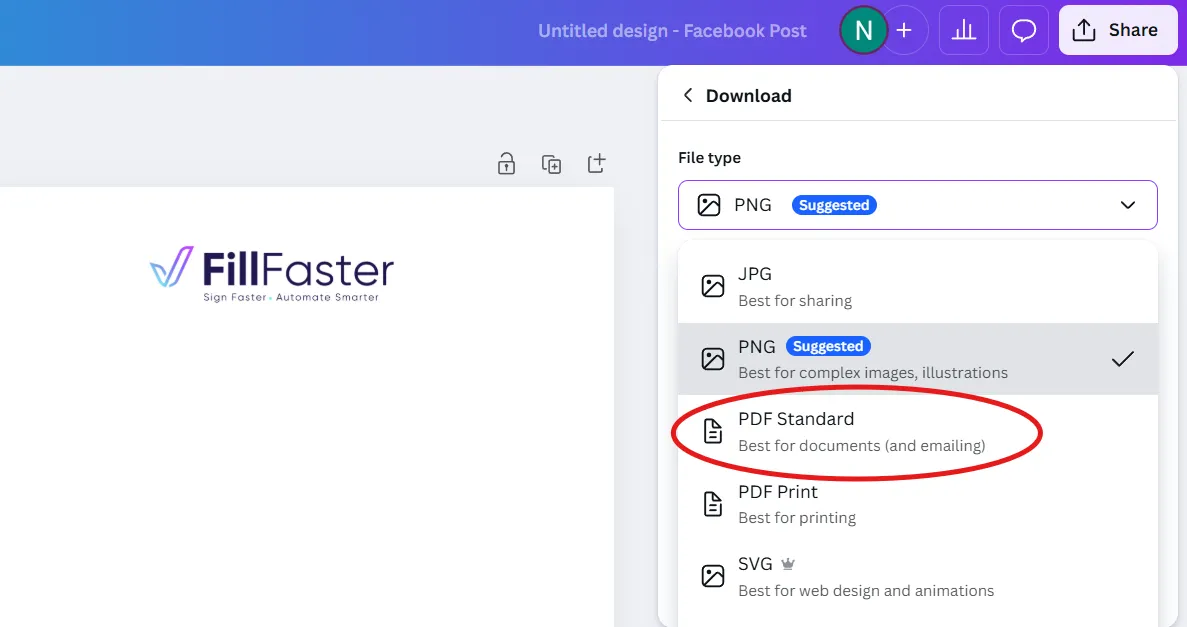
- PDF Standard: Recommended for sending via email, uploading to websites, or digital viewing - Fits to FillFaster ✅
- PDF Print: Recommended if you intend to print the document using a home printer or at a professional print shop - does not fit well with FillFaster in some cases ❌
Step 4: Select PDF Standard
Section titled “Step 4: Select PDF Standard”Important: For compatibility with the FillFaster system, please ensure you select the PDF Standard option.
Step 5: Download the File
Section titled “Step 5: Download the File”Press the purple ‘Download’ button to proceed.
Pro Tip
Section titled “Pro Tip”For fillable or signable documents, always use PDF Standard. This keeps the file size manageable and ensures the document loads quickly for your users.